Five-minute quickstart
What you'll build: A world with a named NPC, a linked location, a faction relationship, and a live player link — all connected in the knowledge graph. Estimated time: 5 minutes.
This guide takes you from a fresh account to a world with a connected NPC, a location, a faction relationship, and a look at the knowledge graph. It covers the core actions you will repeat throughout your time in Skryrún.
Every new account starts with a 14-day Runekeeper trial. You have full access to all features during the trial. No credit card required.
Step 1: Create an account and choose your path
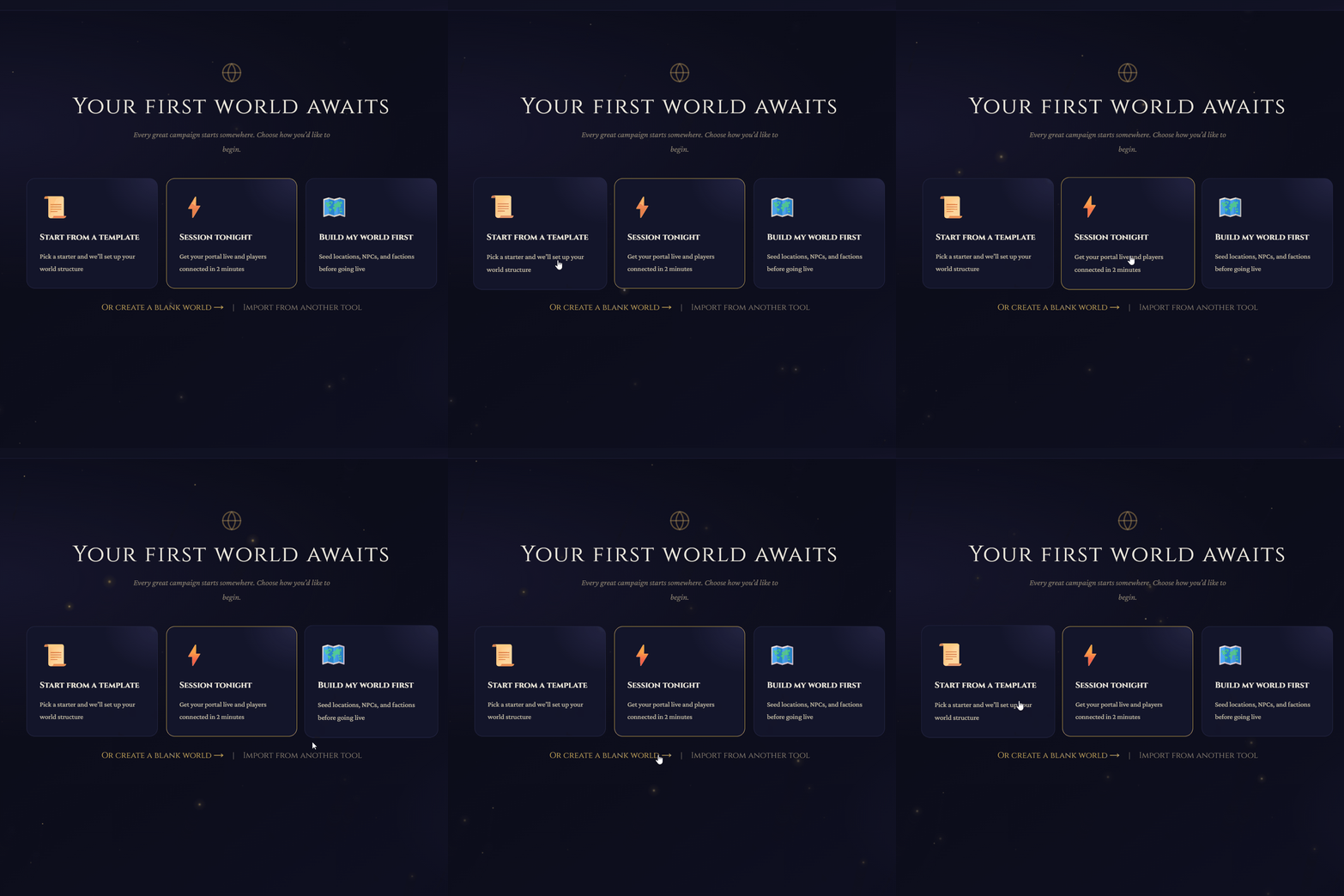
Record: click Get started → welcome screen with three path options visible
- Go to skryrun.com and click Get started. Enter your email and create a password — or sign in with Google or Discord.
- On the welcome screen, choose how you want to begin: Quick Build (enter a name, pick a genre, and set a game system — takes 30 seconds, recommended for first-time users), Template (start from a pre-built world structure with example entities already in place), or Import (bring in content from World Anvil, Obsidian, or a JSON export — available on Weaver and above).
- Choose Quick Build for this walkthrough. Fill in your world name and select a game system. Click Create World.
Step 2: Name your world and set a game system
If you chose Quick Build in Step 1, your world is already created and you will land in the world overview. You can rename your world or change the game system at any time in World Settings → General.
The game system you choose affects stat block formats and entity field presets. If you are not sure, choose System-Agnostic — you can change it later without losing content.
Step 3: Create your first NPC
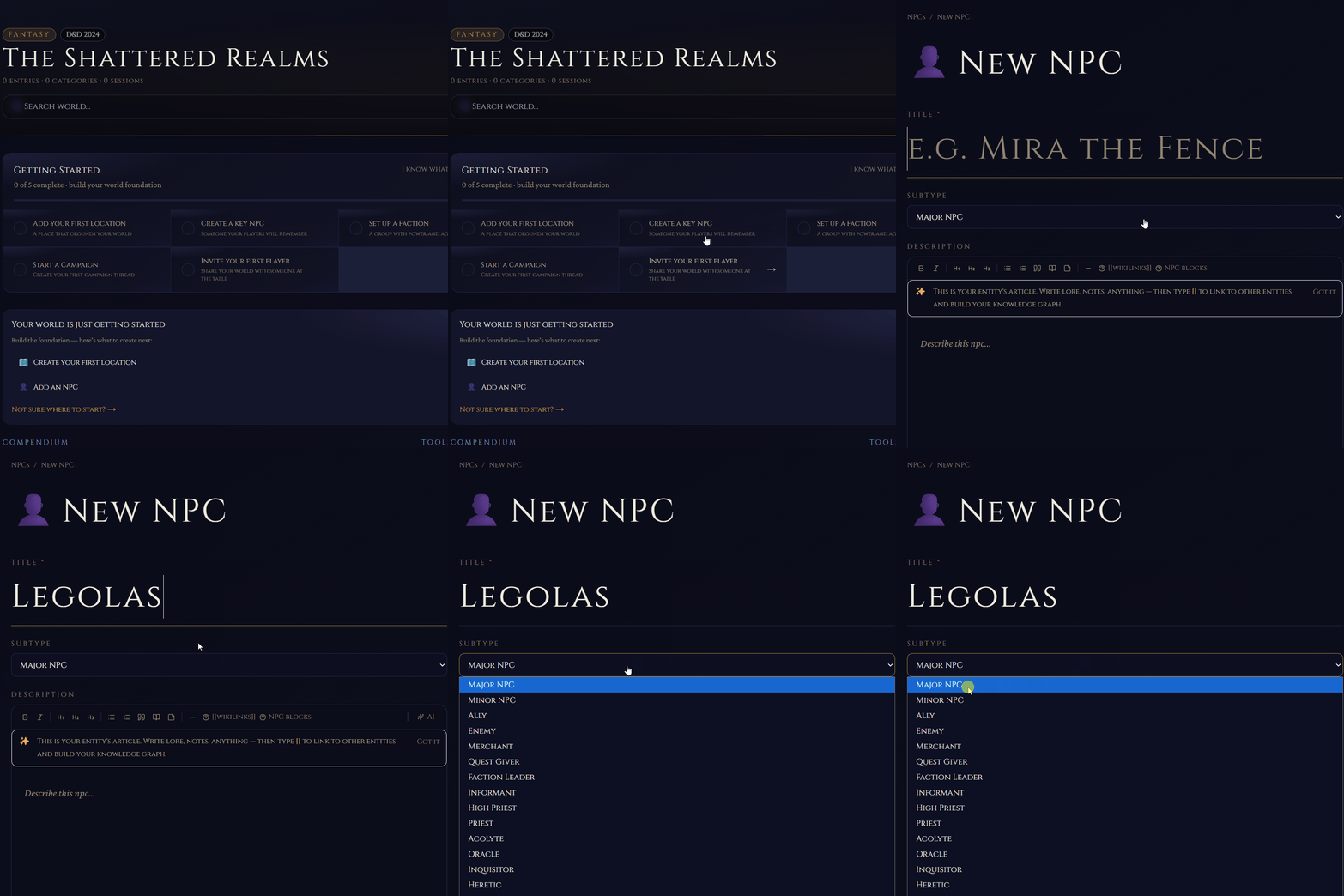
Record: click + New Entity → drawer opens → select NPC type → type a name
- In the left sidebar, click + New Entity — or press ⌘K and type "new entity".
- In the drawer that opens, select NPC as the entity type.
- Give the NPC a name. A tavern keeper, a recurring villain, a merchant — whoever makes sense for your world.
- Click into the Article section and write a sentence or two describing the character. The article editor supports bold, lists, headings, and images.
- In the article body, type the name of a location where this NPC works or lives — but do not create that location yet. Instead, wrap the name in double brackets:
[[Thornhaven]]or[[The Rusty Lantern]]. This is a wikilink. - Press ⌘S to save the NPC.
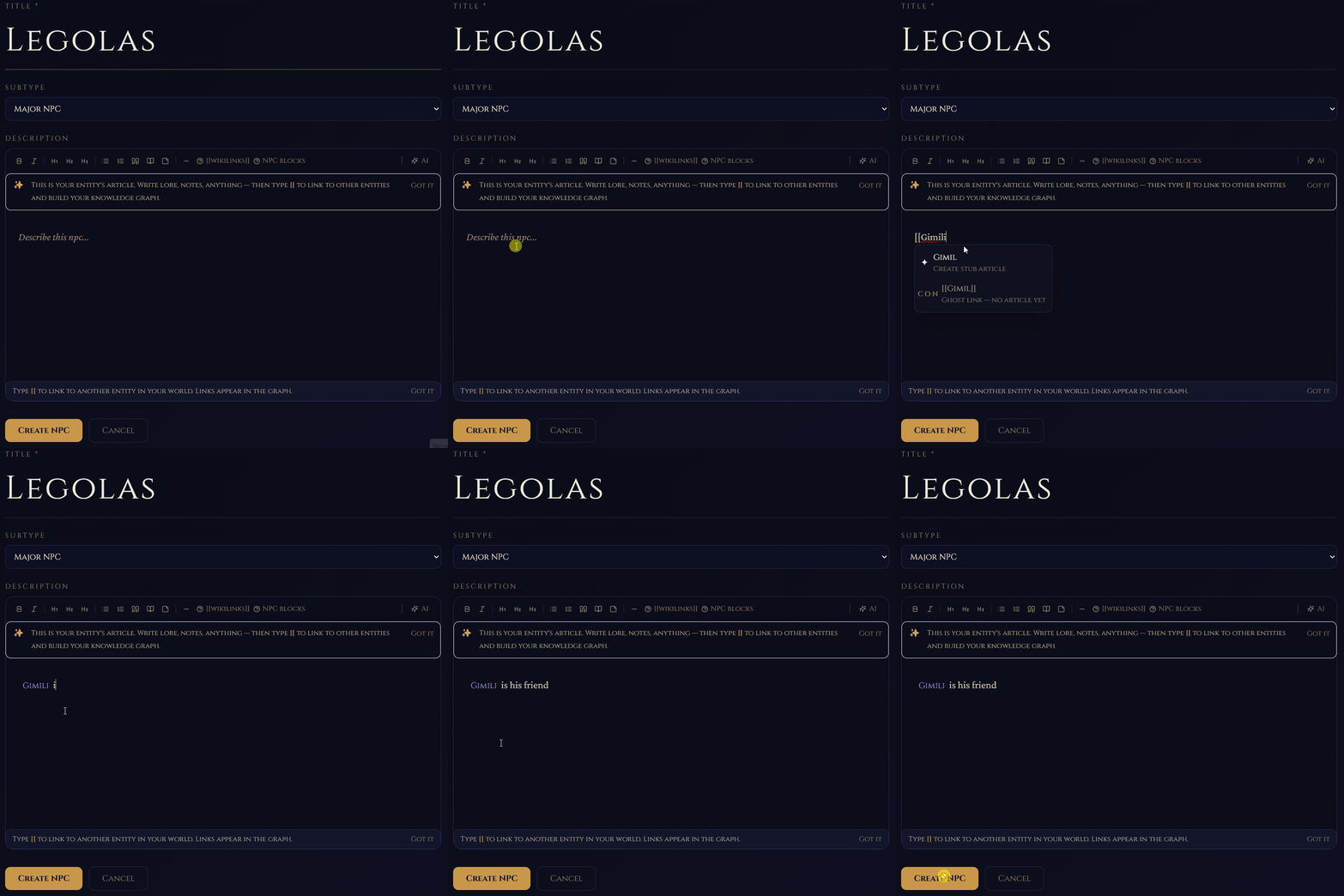
Record: in the article editor, type [[ and start typing a name — show the picker dropdown appearing
The [[double bracket]] syntax is the wikilink trigger. As you type after [[, a picker appears with existing entities. If you type a name that does not exist yet and press Enter, Skryrún creates a stub for that entity automatically. You fill it in later.
Step 4: Fill in the stub location
When you saved the wikilink in Step 3, Skryrún created a stub entity for the location — a placeholder with the name and type, but no article yet.
- In the sidebar, find the stub location (it will have a hollow or "stub" indicator next to it). Click it to open it.
- Add a brief description in the Article section — a sentence about what this place is.
- Set the entity type to Location if it is not already (stubs inherit the type from context when possible).
- Press ⌘S to save.
The wikilink in your NPC's article is now live — clicking it navigates directly to the location.
Step 5: Add a relationship between your NPC and a faction
Wikilinks build the graph automatically, but Relationships let you add explicit labeled edges between entities — things like "member of," "allied with," or "enemy of."
- Open your NPC entity.
- Scroll down to the Relationships panel (below the article).
- Click + Add Relationship.
- In the relationship drawer, set the target entity type to Faction and type a faction name. If the faction does not exist, create it on the fly — Skryrún will stub it.
- Choose a relationship label: "member of," "serves," "opposes" — whatever fits. You can type a custom label.
- Save the relationship. It now appears in both the NPC's relationship panel and the faction's panel.
Step 6: View the Knowledge Graph
The graph is automatically updated whenever you add wikilinks or relationships.
- In the sidebar, click Graph — or look for the graph icon in the top navigation bar.
- You should see your NPC, location, and faction as nodes connected by edges.
- Click any node to preview the entity. Double-click to open it.
- Use the filter panel to show or hide entity types, or to filter by visibility level.
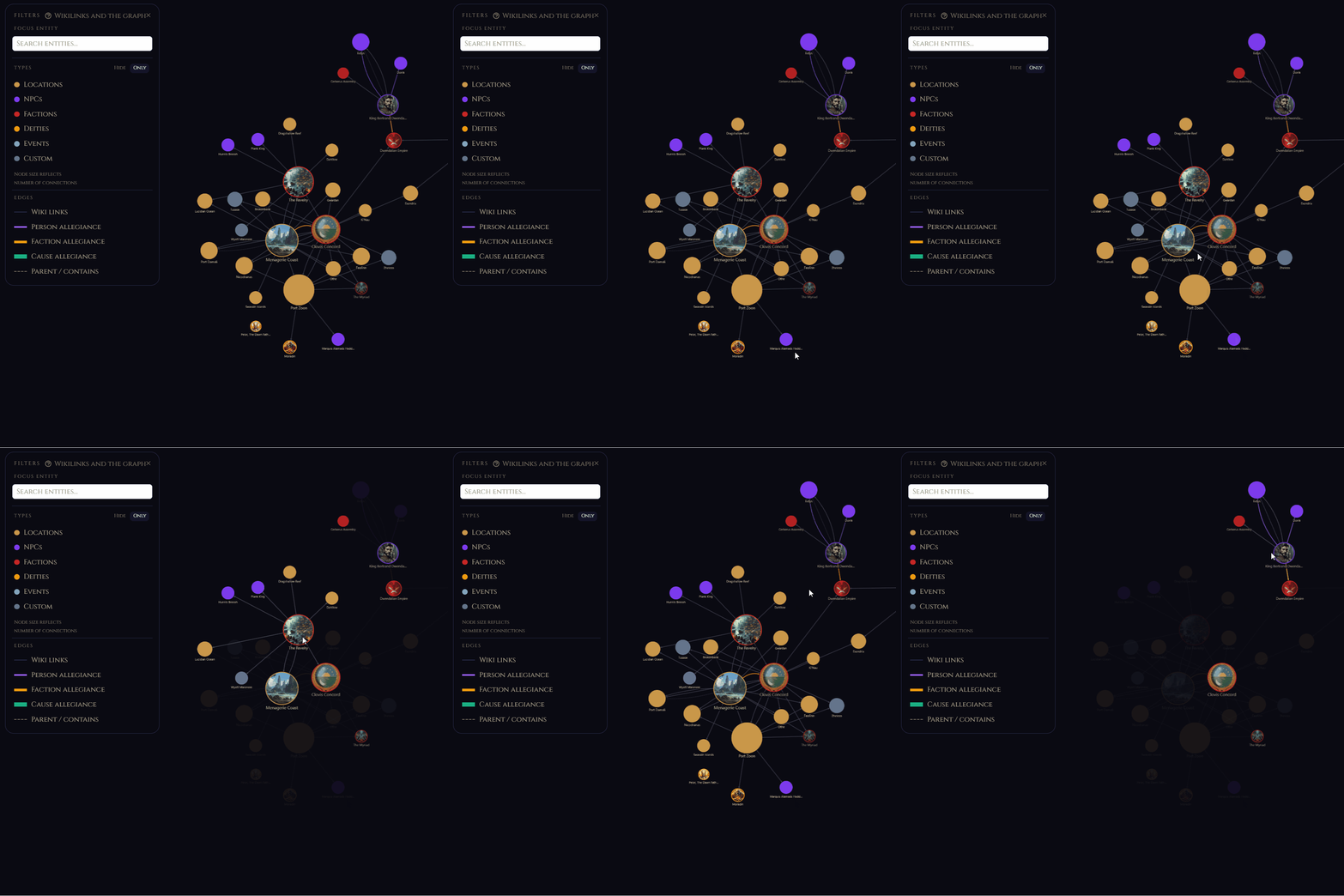
Record: open Graph view — pan around, click a node to show the side panel preview
The graph lives at the world level. Every entity and every connection you make — wikilinks and relationships — appears here. As your world grows, the graph becomes one of the fastest ways to navigate it.
Step 7: Share the world with a player (optional)
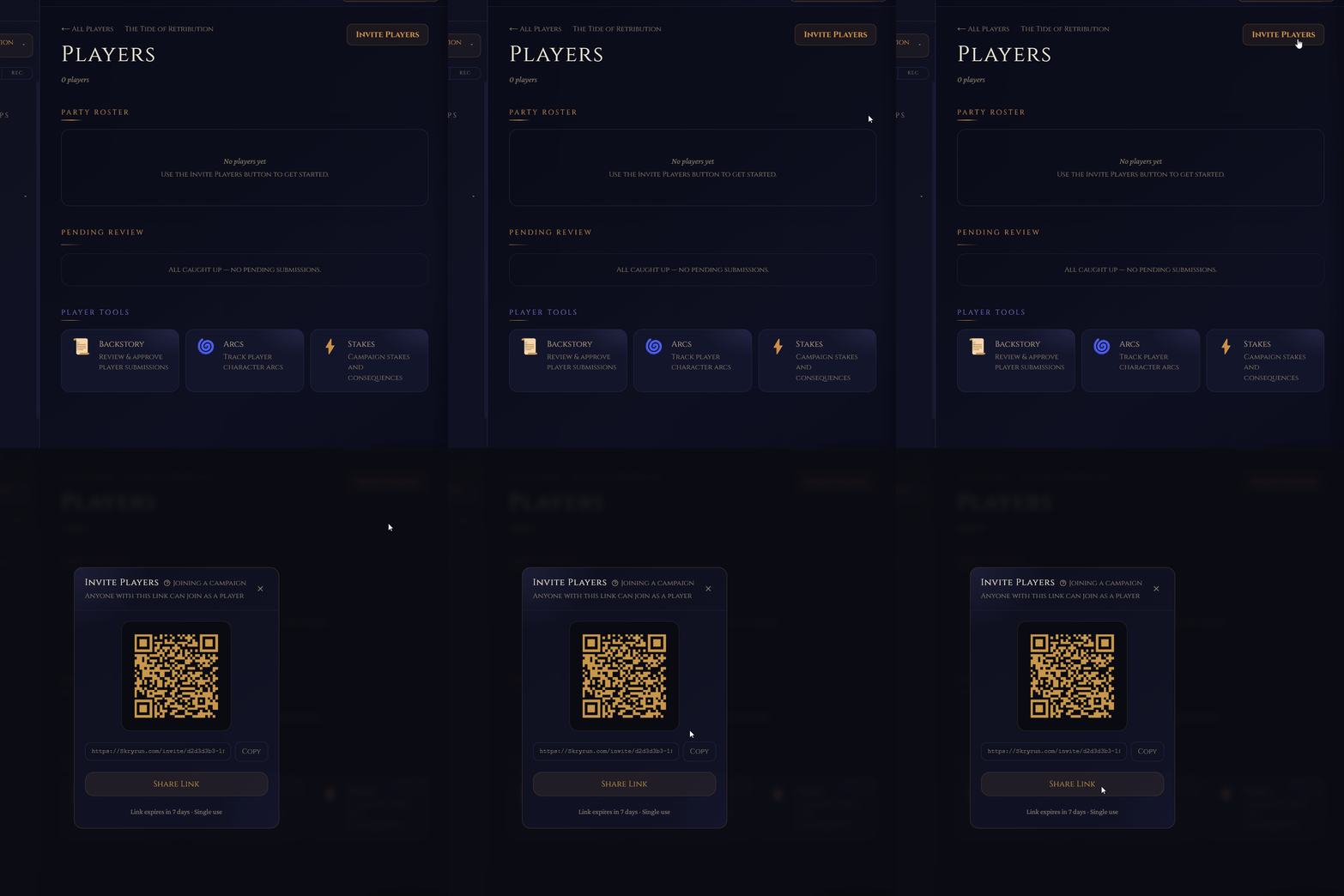
Record: open Invite Players — show the overlay with QR code, copy link button, and both invite types
- In the sidebar, go to Campaigns and create a campaign if you have not already. Give it a name.
- Click Invite Players. You have two options: Invite by email (the player creates an account and joins the campaign, seeing all Party-visible content) or Companion link (a login-free URL for players who just need to follow along during a live session — no account required).
- Copy the link and send it to your player.
- Back in your world, open the NPC you created. The default visibility is GM Only — players cannot see it yet. Click the visibility badge next to the entity name and change it to Party.
- Your player's portal updates immediately — no refresh needed.
Player portals require ⚔️ Weaver+ or above. During your Runekeeper trial, portals are fully active and your players can connect right now.
Troubleshooting
The wikilink picker didn't appear when I typed [[.
Make sure you're inside the article body editor, not a metadata field like the name or tags. The picker only activates inside rich-text article blocks.
I saved my NPC but I can't find it in the sidebar. Check the entity type filter at the top of the sidebar — if it's set to a specific type (like Locations), NPCs won't appear. Click the filter to reset it to All.
The graph shows no nodes.
The graph only shows entities that have at least one wikilink or relationship. If your NPC doesn't yet link to anything via [[...]] or the Relationships panel, it won't appear as a connected node. Add a wikilink first, then open the graph.
My player can't access the world after I shared the link. Campaign invites and companion links are different things. A companion link is session-only and requires no account. A campaign invite gives permanent portal access but requires the player to create a free Chronicler account. If they need the portal, send them the campaign invite link from the Campaigns panel, not the session companion link.
What to read next
- Key concepts — the mental model behind entities, articles, wikilinks, and visibility
- Entity types — all 15 entity types and what each one is for
- Visibility levels — how to control what players see and when
- Keyboard shortcuts — the fastest way to move through Skryrún